Saved Jobs - 7025/7030 Xerox Printers
The Saved Jobs feature allows you to save print jobs, including the document content and print driver settings, to print at a later time. This feature is very handy if you have a document that you frequently need to print out. There is no need to go to a PC, open the document, set the settings and send it to the printer. Just save it at the printer and print it with the predefined settings whenever you need the document.
To save a print job:
- *In your software application (Word, Excel), open the document you want to save. Click on Print as you normally would.
- Select your printer, then open the print driver:
- For Windows, click Printer Properties. Depending on your application, the title of the button can vary.
- For Job Type, select Saved Job.
- Type a job name (Be descriptive, this is what will be displayed on the printer), then click OK.
- Select any other required printing options.
- Send the job to the printer:
- For Windows, click OK, then click Print.
- For Macintosh, click Print.
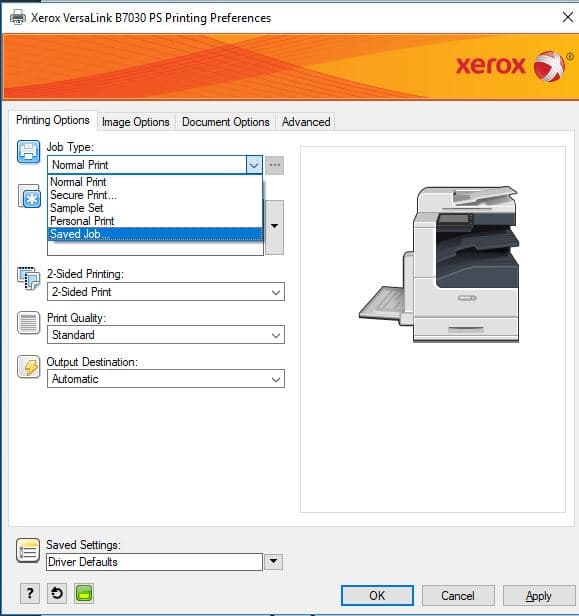
NOTE: After you change this, the next time you print you will need to change this back to secure print or all jobs will be saved
The print job is now saved on the printer and the job is available to all users that have access to the printer.
The jobs are stored in folders on the hard drive of the machine. The number of jobs that can be stored depends on the types of documents and the size of the file. The options included in the document also play into the number of documents that can be stored. Attributes such as color or black and white, original document size, resolution, etc. comprise the file and count in the size of the document file.
Saved jobs for reprint will stay on the hard drive of the machine until one of the following occurs:
- A user manually deletes a job.
- The time period for retaining the job has ended
- The Image Overwrite feature is run.
- A Customer Service Engineer (technician) re-formats the hard drive.
To Access the Print Job from the Printer
- Tap on Jobs
- Tap Saved Jobs
- Tap on the job you want to print