-
In People, in the folder pane, click the contact folder that you want to share with a person in your organization.
-

-
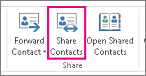
Click Home. Then, in the Share group, click Share Contacts.
-
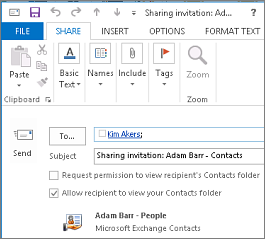
In the To box, enter the name of the recipient for the sharing invitation message. If you want to, you can change the Subject.
-
In the message body, type any information that you want to include, and then click Send. Review the confirmation dialog box, and then if correct, click OK.
-
The person in your organization receives the sharing invitation in email, and clicks Open this Contacts folder. (by default the user gets Review access, to give Edit access follow additional steps below)

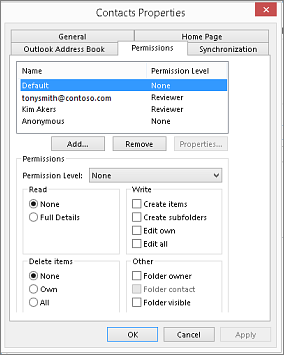
To change or revoke someone's access permissions to your contacts folders, do the following:
Folder sharing permissions
With this permission level (or role)
You can
Owner
Create, read, change, and delete all items and files, and create subfolders. As the folder owner, you can change the permission levels that other people have for the folder. (Doesn’t apply to delegates.)
Publishing Editor
Create, read, change, and delete all items and files, and create subfolders. (Doesn’t apply to delegates.)
Editor
Create, read, change, and delete all items and files.
Publishing Author
Create and read items and files, create subfolders, and change and delete items and files that you create. (Doesn’t apply to delegates.)
Author
Create and read items and files, and change and delete items and files that you create.
Nonediting Author
Create and read items and files, and delete items and files that you create.
Reviewer
Read items and files only.
Contributor
Create items and files only. The contents of the folder don’t appear. (Does not apply to delegates.)
None
You have no permission. You can’t open the folder.
You can create custom permissions by selecting the appropriate check boxes and options under Permissions.